
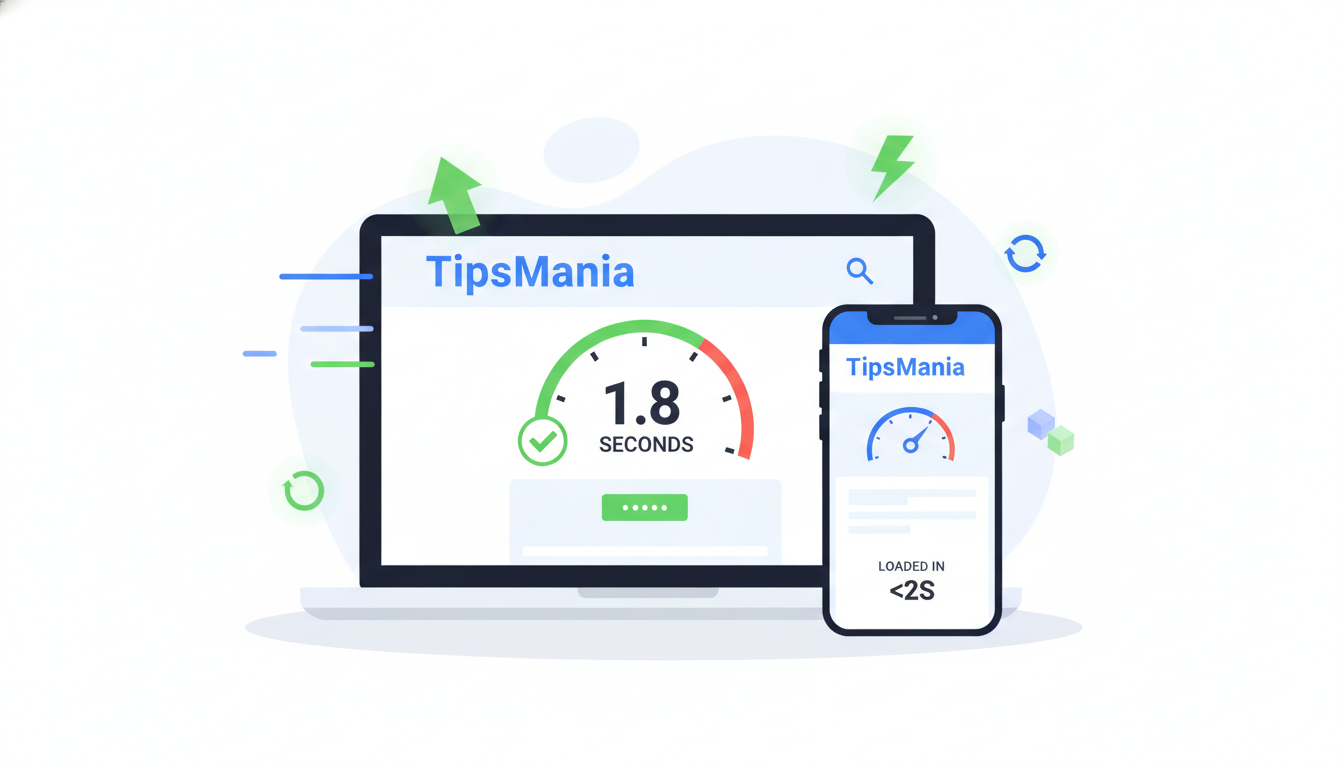
Visitors are annoyed by slow websites and it also makes search rankings go down. Users nowadays want websites to be loaded instantly so if it takes time and the site is slow, they will just leave. If your website is more than 3 seconds slow in loading, you are most likely losing visitors as well as potential customers.
Besides just improving user experience, website speed is one of the most important factors in Google’s ranking algorithm. Slow loading websites can cause your SEO efforts to be ruined and reduce your conversions significantly. The good part is that you don’t have to be a technical expert to do it.
This step-by-step guide helps you to learn how to make your website faster without coding. The methods here have been tested and verified and they will definitely make your site perform better, increase your rankings and also get visitors remain longer on your site.
Why Website Speed Matters
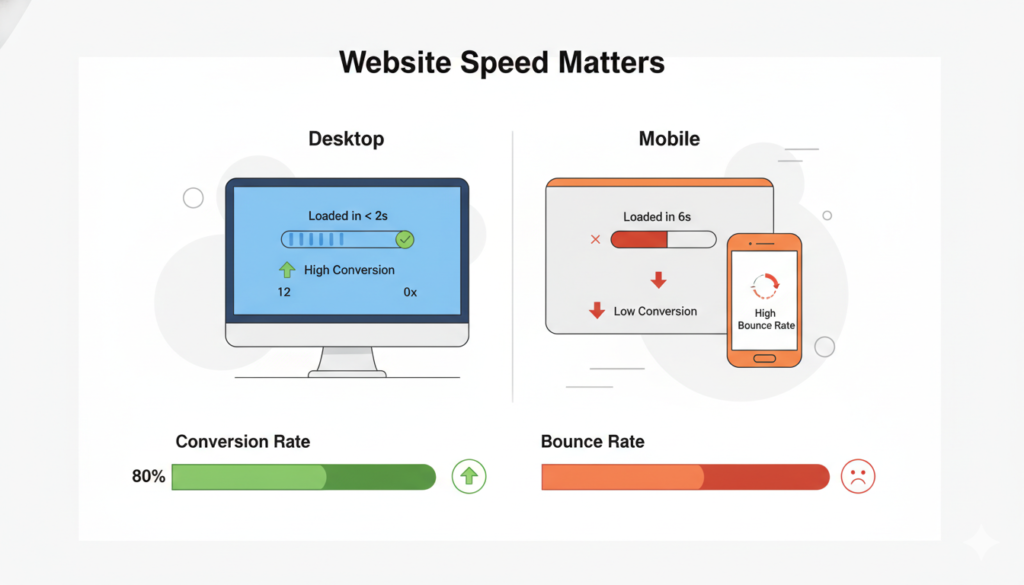
Speed of a website can affect the behavior and attitude of users towards it in a great deal. Just look through these amazing stats:
- Nearly half (47%) of web users want to see pages loaded within 2 seconds or less
- Conversion rates drop by 7% with each 1-second delay in page load
- More than a third (40%) of visitors who experience a slow site (more than 3 seconds) simply walk away
- The impatience level of mobile users is even higher compared to desktop
Delivering fast-loading content is one of the signals taken into account by Google in deciding the rank of a page for both desktop and mobile. Websites that load speedily have:
- Higher ranking in search engines
- Users are less likely to bounce back
- Higher engagement
- Higher conversion rates
- Users have a better experience
Test Your Current Website Speed
When you decide to work on something, it is very important that you know the exact state of the thing before you start (baseline). You can use any of these three free utilities to get a measurement of your website speed:
Google PageSpeed Insights
- Your website will be rated separately for mobile and desktop
- You will receive customised improvement suggestions
- Google Web Vitals metrics will be presented
- Performance data from the real world is offered
GTmetrix
- Provides a detailed analysis of the page load times
- Gives performance score and grades
- Displays a waterfall chart of loading elements
- Gives actionable recommendations
Pingdom Website Speed Test
- You can test website from various locations around the world
- Performance scores provided are very easy to understand
- Analysis of loaded resources is given in detail
- You get a breakdown of file sizes and load time
It makes sense to benchmark your current status before any changes are made. Conducting tests on all three tools will give you a thorough perspective of your website performance.
Optimize Images
Images often weigh heavily on the website’s loading time. You can follow the tips below to optimize them:
Image Compression
Below are some tools which you can try to reduce size of a file while maintaining its quality:
- TinyPNG: Specializes in PNG and JPEG compression
- ShortPixel: Bulk optimisation with WordPress integration
- Smush: Compression happens automatically as you upload
Best Practices
1. Choose the appropriate format:
- JPEG for photographic images
- PNG for graphics and images containing text
- WebP for the newest browsers
- SVG for logos and vector icons
2. Use the lazy loading technique:
- Load images only when they semi-come into view
- Initial page load time is improved
- Better user experience
- The browser supports it natively
3. Properly size the images:
- You should not be uploading anything bigger that what is really needed
- Make use of responsive images
- Specify the image dimensions in your HTML
- Don’t forget that most users will view your site on their mobiles
Enable Caching
Caching can be seen as your website’s brain. To explain briefly, your website won’t be freshly assembled on every\nvisit; instead, the pieces will be collected to make the load faster.
Caching in Detail
- First visitor: Page is rendered and saved
- Next visitors: Cached page is served immediately
- Loading time is greatly reduced
- Server load gets lower
Best Caching Plugins
If making website by using WordPress:
- W3 Total Cache (Free)
- WP Rocket (Premium)
Quick Setup Guide
- Installing your preferred caching plugin.
- Turning on page caching.
- Setting cache expiration time.
- Configuring browser caching.
- Verifying the changes through tests.
Reduce HTTP Requests
Basically, every element that your page has (such as images, scripts, stylesheets) needs to make an HTTP request. The fewer requests you make, the faster the page loads.
Simple Ways to Reduce Requests
- Combine Files
- Unify CSS files
- Merge JavaScript files
- Use CSS sprites for icons
- Take advantage of plugin’s built-in features
- Minimize Resources
- Get rid of unnecessary plugins
- Scrap redundant scripts
- Remove unused CSS
- Tune theme files
- Tool Recommendations
- Asset CleanUp
- Autoptimize
- Fast Velocity Minify
- Plugin Organizer
Best Practices
- Keep plugins to a minimum
- Use lightweight themes
- Get rid of unused widgets
- Optimize loading order

Use a Content Delivery Network (CDN)
Basically, a CDN is a global network of servers that deliver a copy of your web content from the location nearest to your visitors. You can also think of it as an international chain of local branches servicing your website.
Benefits of Using a CDN
- The site is loaded faster for global visitors
- The load on your server is minimized
- The website can handle unexpected spikes of visitors better
- Better security
- Improved reliability
Free CDN Options
1. Cloudflare
- Setup is simple
- Free SSL certificate
- Basic DDoS protection
- Global network
- Simple dashboard
2. BunnyCDN
- Pay-as-you-go option
- Easy integration
- Quick setup
- Reliable performance
Implementation Steps
- Choose and register with a CDN service
- Put your domain name
- Change your DNS settings
- Set the configurations
- Test the output
Minify CSS, JS, and HTML
Minification is the process of code cleaning to remove white spaces, line breaks, some comments, and other unnecessary characters without modifying the function of the code.
Simple Minification Tools
1. Autoptimize
- Minification is done automatically
- Files can also be combined
- You get to manage your cache
- The setting and configuration are quite simple
2. WP Rocket
- Minification can be done with just one click
- File optimization is smart
- Compatible with most themes
- Regular updates
Step-by-Step Guide
- Install your preferred optimization plugin
- Switch on the minification properties
- Check your website functionality
- Clear your cache
- Measure your loading speed improvement
Optimize Hosting and Server Performance
Your hosting provider is being compared here to a very sturdy foundation of a building – if the foundation is not good, nothing can work well.
Hosting Impact on Speed
- How fast the server responds
- How the resources are distributed
- How the server handles the traffic
- How the database functions
- What security measures are put in place
Beginners’ Recommendations
1. Top Hosting Providers
- SiteGround
- WP Engine
- Cloudways
- Kinsta
- A2 Hosting
2. Most Important Features
- SSD storage
- Inbuilt caching
- Regular backups
- Good support
- Latest hardware
Optimization Tips
- Choose the ideal hosting type for your website
- Choose closest data center to your target audience
- Implement caching on server-level
- Keep PHP version up-to-date
- Continuously check whether resources are over-used
Read More: On-Page SEO checklist for Bloggers : 12 steps to get higher rankings quickly in 2026
Remove Unnecessary Plugins and Scripts
Each plugin injects new code to your website and hence too many plugins will significantly degrade the performance of your site.
Plugin Audit Process
- List All Plugins
- Take note of active plugins
- Look at how often each plugin is being used
- Remove any duplicate plugins
- Mark which plugins have the biggest impact on performance
- Remove Unnecessary Ones
- Deactivate unused plugins
- Delete feature redundancies
- Consolidate plugin functionalities
- Only keep the essential ones
Performance Checking
- Check website speed before and after plugin removal
- Observe the server load
- Note the size of the database
- Ensure sensors are working
Monitor Your Website Performance
Regularly monitoring your website helps you to maintain fast speed and address problems on time.
Schedule of Regular Checks
- Conduct speed tests on weekly basis
- Review plugins every month
- Analyze hosting quarterly
- Verify backups regularly
Tools for Monitoring
- Google PageSpeed Insights
- Provides Core Web Vitals tracking
- Monitor mobile performance
- Check desktop speed
- Review suggestions
- GTmetrix
- You may set monitoring alerts
- Track historical data
- You’ll get a competitive analysis
- Reports can be generated in detail
Best Practices
- Make documentation of all changes
- Keep logs of performance
- Set benchmarks for speed
- Respond to issues quickly
You don’t need to be a coder to speed up your site just treat these tips like a roadmap and follow closely:
- Start focusing on your images
- Enable caching
- Implement a CDN
- Keep plugins minimal
- Monitor regularly
Following these instructions, you will be able to dramatically increase your website’s performance and give a better user experience to your visitors.
Next Steps
- Run a speed test on your website
- Implement changes one at a time
- Monitor the impact
- Fine-tune as needed
Don’t be restrained by the slow speed of your website. Optimizing your site with the techniques herein will soon be your reality!
Final Tips
- Phased implementation of changes
- Testing after each modification
- Update of optimization tools
- Regular maintenance is key
Has the desire to speed up your website got you? Well, you may start by running a test on your site to know the current speed and then proceed with optimization one step at a time!
